

If you manage multiple YouTube channels, using vidIQ can be a game-changer. This powerful tool provides analytics, keyword insights, and optimization features that help you optimize YouTube channel performance effectively. But to get started, you first need to add and authenticate the channels you manage—especially if they’re set up as brand accounts.
In this guide, we’ll walk you step-by-step through the process so you can integrate your channels with vidIQ smoothly and start using its tools to optimize YouTube channel visibility, engagement, and growth.
Step 1: Ensure the Channel is a Brand Account
The very first step is confirming the channel you manage is a brand account. Brand accounts allow multiple managers and are required for third-party integrations like vidIQ.
What to do:
- Communicate with the Channel Owner: Let them know their channel must be a brand account. This is a critical requirement to optimize YouTube channel access and analytics with vidIQ.
- Verification by the Channel Owner: Have them visit Google Brand Accounts to check if the channel appears under “Your Brand Accounts.” If not, they’ll need to convert their channel.

Step 2: Adjust Permissions
Once the channel is a brand account, make sure permissions are managed through the brand account itself—not YouTube Studio. The owner must opt out of YouTube Studio permissions for proper third-party connection. This ensures vidIQ can pull the necessary data to optimize YouTube channel performance.
Step 3: Role Assignment
Now that permissions are managed through the brand account, the channel owner needs to grant you the right access level. Assigning the correct role (manager or owner) allows you to fully use vidIQ tools to optimize YouTube channel content, metadata, and strategy.
Step 4: Authenticate the Channel in vidIQ
With the correct setup and permissions in place:
- Log into your vidIQ account.
- Navigate to “Connect Channel” and select the brand account you manage.
- Authenticate the connection following vidIQ’s on-screen prompts.
Once connected, you’ll unlock all vidIQ features to optimize YouTube channel watch time, click-through rates, and audience growth.
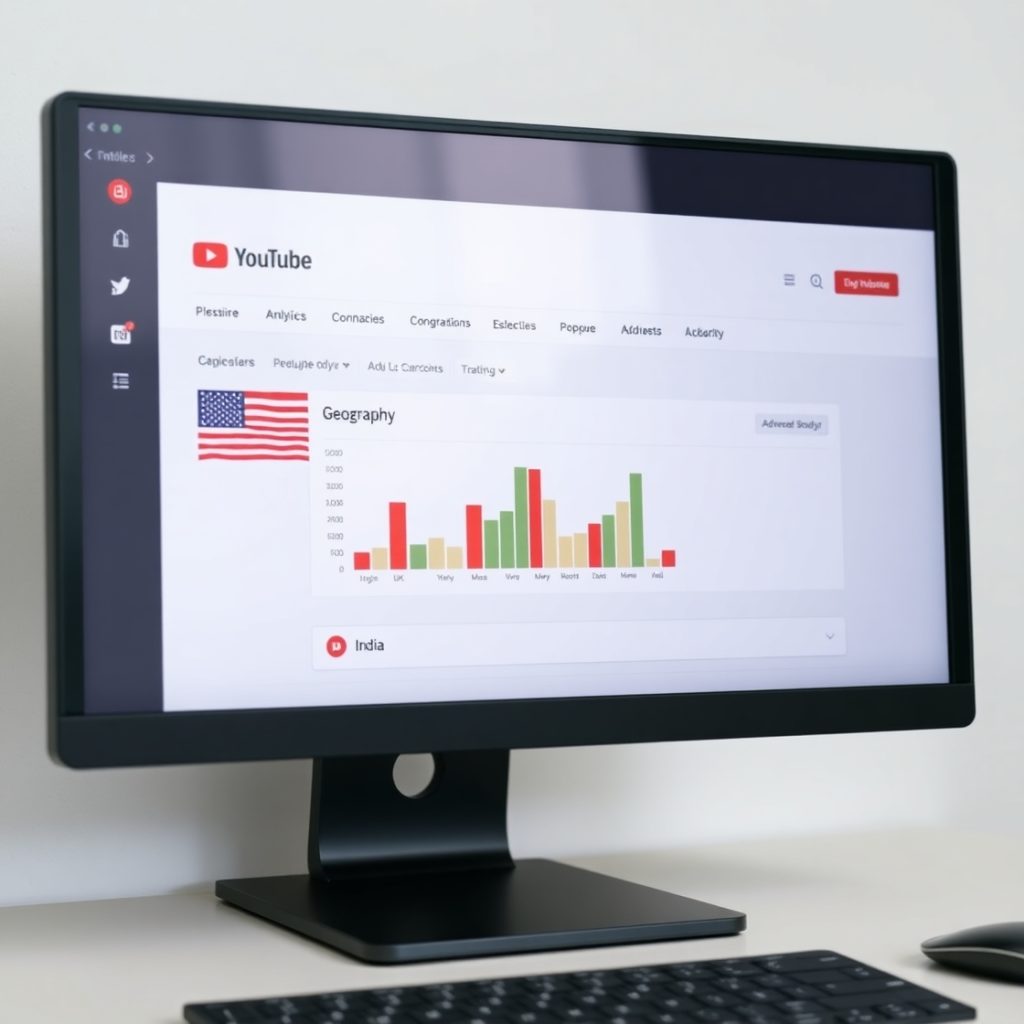
Why This Process Matters
Many account managers overlook the brand account requirement, which can cause delays in connecting to vidIQ. Following these steps ensures smooth integration so you can start using analytics, keyword tracking, and SEO recommendations to optimize YouTube channel reach and engagement from day one.
Final Thoughts
As a YouTube account manager, your job is to ensure every channel you oversee performs at its best. vidIQ gives you the insights and tools you need to optimize YouTube channel results—but only if it’s connected correctly. Take the time to follow the steps above, and you’ll be ready to boost your channel’s success.


Để lại một bình luận